


- Posts: 255
- Thank you received: 0
How to Send Money to Interactive Brokers via Payoneer?
- Masters Trade
-
 Topic Author
- Online
- Administrator
-

Less
More
2 days 6 hours ago #175
by Masters Trade
Central banks often introduce currency restrictions, forcing investors to look for alternative ways to fund their Interactive Brokers accounts. In this article, we will cover how to top up an Interactive Brokers account directly from a Payoneer account.
We won't cover how to set up Payoneer itself, as you can easily open and fund your account in this payment system on your own.
Let's start in the Interactive Brokers client portal. Once logged in, go to the "Transfer & Pay" menu item and click on the "Transfer Funds" sub-item.

Next, select "Make a deposit". Create a new deposit method by clicking "Use a new deposit method".
On the new page, make sure the deposit currency is set specifically to US Dollars (USD).
A list of deposit methods will appear, from which we need to select "Direct ACH Transfer from your Bank" by clicking "Get instructions". (ACH is the US equivalent of a standard bank account transfer, since Payoneer accounts are issued in the United States.)

Next, we confirm that the payment will be made strictly in USD and acknowledge once again that we will be sending US Dollars.
A page will appear displaying all the bank details required for the next steps.
Here is what we will need:
1. Routing Number
2. The bank where the account is opened (in our case, UMB Bank)
3. Account Number

Now, switch over to Payoneer. Go to the "Banks & cards" section and select "Bank accounts for withdrawal". Here, we will create a template for the IB account to which we can withdraw funds.

In the new window, select the "Recipient accounts" tab and click "Add bank account".

A form will appear where we will set up the bank account details for withdrawing USD to Interactive Brokers. In the first section, specify that this is a US business account and that it is in USD.

Next, enter the Interactive Brokers corporate details:
Phone: 1 (312) 542-6901
E-mail: help@interactivebrokers.com
Street: One Pickwick Plaza
City: Greenwich
State: Connecticut
ZIP code: 06830
Also, specify that this payment is for accounting or tax services that have already been rendered.

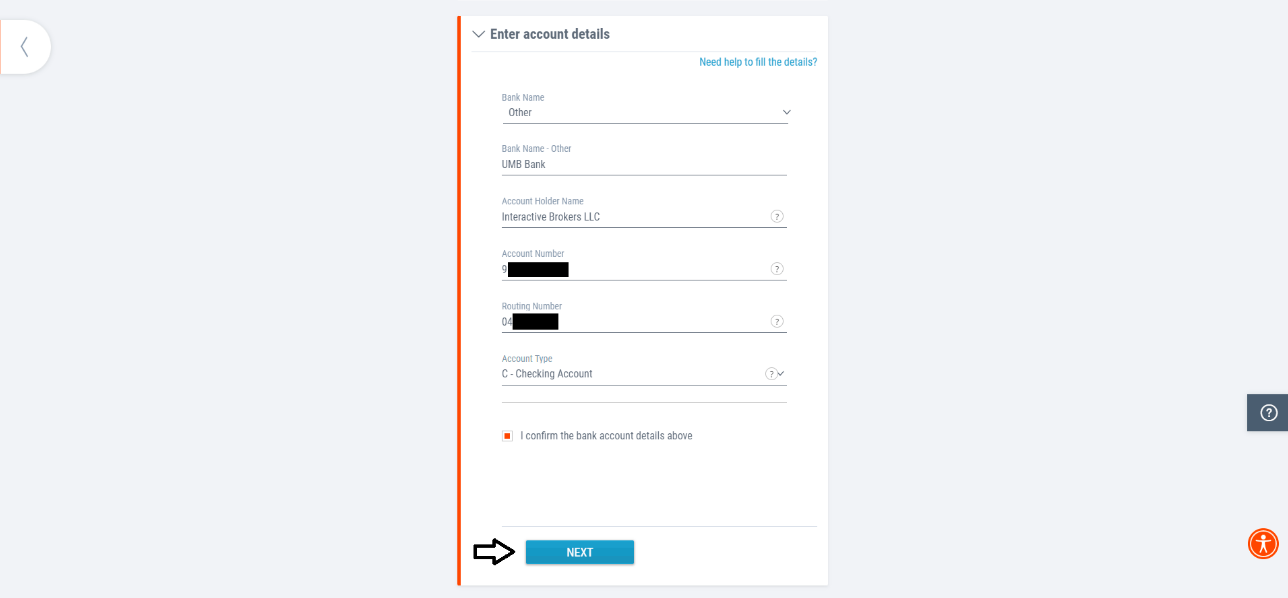
In the next section, describe our account at Interactive Brokers. Enter the bank name displayed earlier in your IB portal, along with your Routing Number and Account Number. Select "Checking account" as the account type.
Finally, confirm your details by entering the date of birth of the Payoneer account holder and your password.
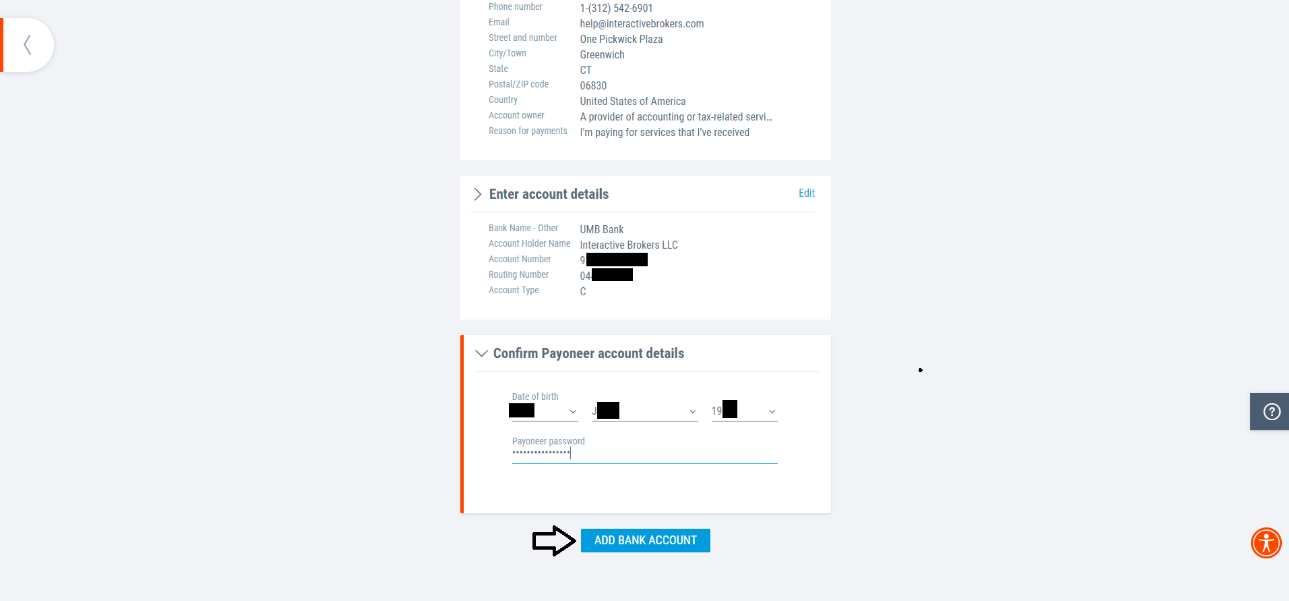
That's it! We have submitted a request to add IB as a withdrawal destination in Payoneer. Now, wait for the request to be approved; this usually takes about 5 minutes, though occasional delays may occur.

Once approved, the new account marked "Approved" will appear under the "Recipient accounts" tab within the "Bank accounts for withdrawal" section.

To initiate a transfer, click on this account and select "Make a payment".

In the pop-up window, select your USD balance on Payoneer and double-check that the payment is directed to the newly created IB account. Specify the transfer amount, which will display the commission fee (1.8% in our example). For extra security, you can re-enter your IB account number (formatted as U*******, visible on almost every tab in IB) in the payment memo/comment field.
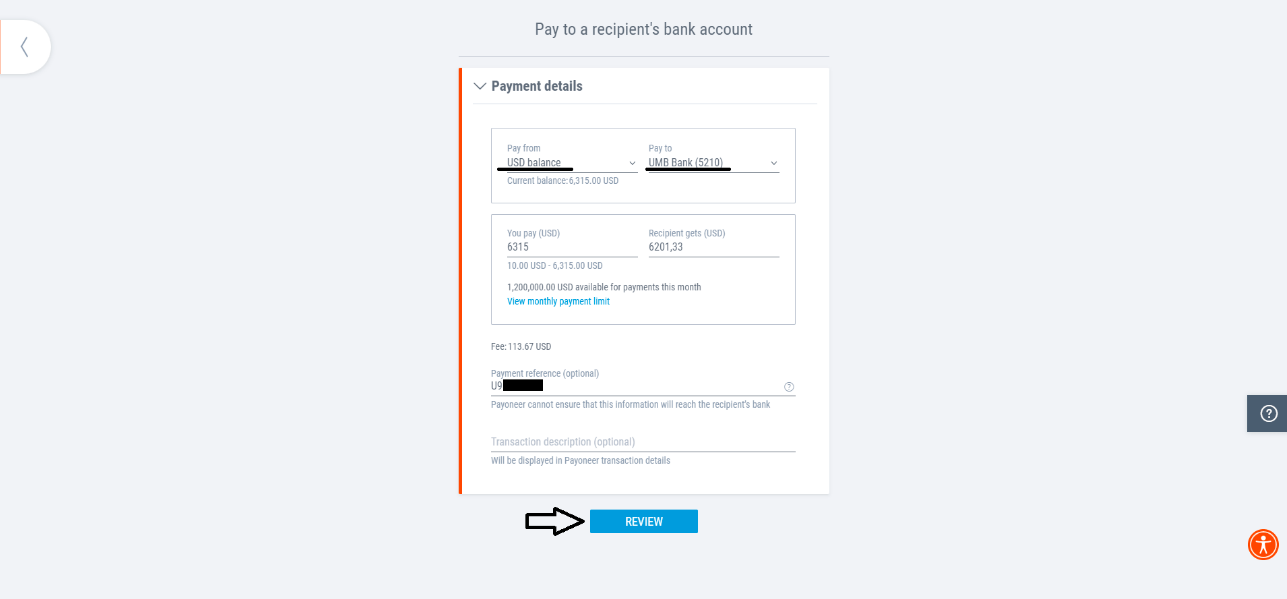
Next comes a review screen to verify payment details, followed by a final confirmation screen requiring an SMS verification code. Once entered, the transfer is submitted and processed.
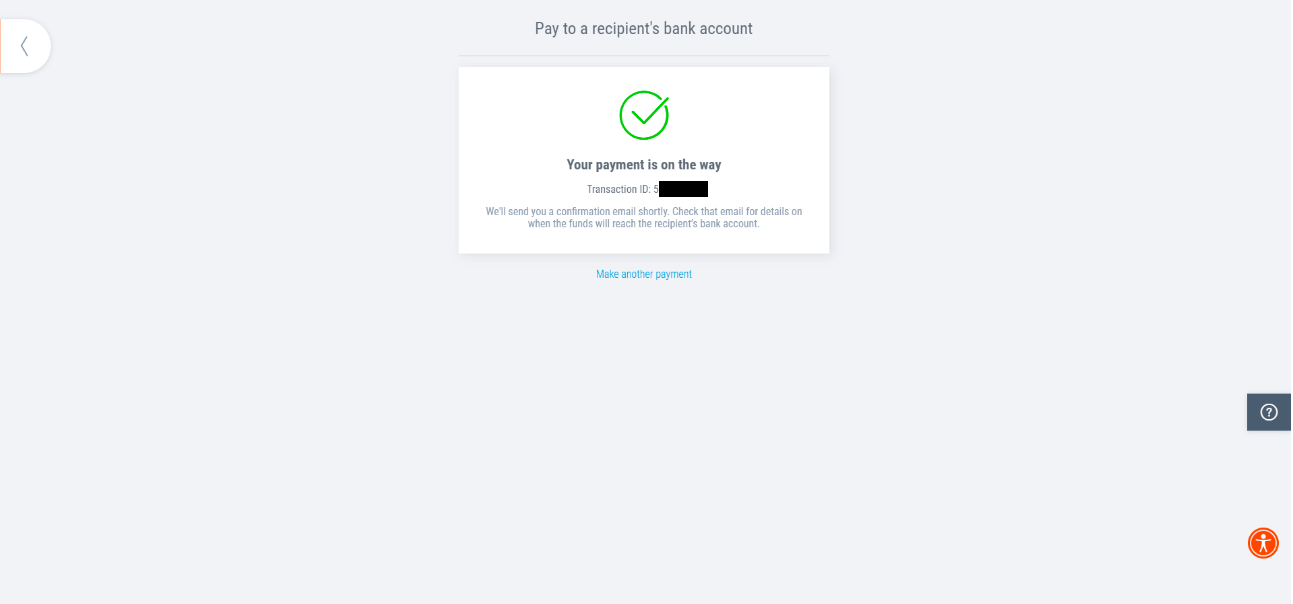
In our example, the transfer was initiated at 10:00 AM on Thursday (3:00 AM New York time). At 2:00 PM, Payoneer confirmed that the payment had been sent, and the funds arrived in the IBKR account at 7:00 PM the same day.
We won't cover how to set up Payoneer itself, as you can easily open and fund your account in this payment system on your own.
Let's start in the Interactive Brokers client portal. Once logged in, go to the "Transfer & Pay" menu item and click on the "Transfer Funds" sub-item.
Next, select "Make a deposit". Create a new deposit method by clicking "Use a new deposit method".
On the new page, make sure the deposit currency is set specifically to US Dollars (USD).
A list of deposit methods will appear, from which we need to select "Direct ACH Transfer from your Bank" by clicking "Get instructions". (ACH is the US equivalent of a standard bank account transfer, since Payoneer accounts are issued in the United States.)
Next, we confirm that the payment will be made strictly in USD and acknowledge once again that we will be sending US Dollars.
A page will appear displaying all the bank details required for the next steps.
Here is what we will need:
1. Routing Number
2. The bank where the account is opened (in our case, UMB Bank)
3. Account Number
Now, switch over to Payoneer. Go to the "Banks & cards" section and select "Bank accounts for withdrawal". Here, we will create a template for the IB account to which we can withdraw funds.
In the new window, select the "Recipient accounts" tab and click "Add bank account".
A form will appear where we will set up the bank account details for withdrawing USD to Interactive Brokers. In the first section, specify that this is a US business account and that it is in USD.
Next, enter the Interactive Brokers corporate details:
Phone: 1 (312) 542-6901
E-mail: help@interactivebrokers.com
Street: One Pickwick Plaza
City: Greenwich
State: Connecticut
ZIP code: 06830
Also, specify that this payment is for accounting or tax services that have already been rendered.
In the next section, describe our account at Interactive Brokers. Enter the bank name displayed earlier in your IB portal, along with your Routing Number and Account Number. Select "Checking account" as the account type.
Finally, confirm your details by entering the date of birth of the Payoneer account holder and your password.
That's it! We have submitted a request to add IB as a withdrawal destination in Payoneer. Now, wait for the request to be approved; this usually takes about 5 minutes, though occasional delays may occur.
Once approved, the new account marked "Approved" will appear under the "Recipient accounts" tab within the "Bank accounts for withdrawal" section.
To initiate a transfer, click on this account and select "Make a payment".
In the pop-up window, select your USD balance on Payoneer and double-check that the payment is directed to the newly created IB account. Specify the transfer amount, which will display the commission fee (1.8% in our example). For extra security, you can re-enter your IB account number (formatted as U*******, visible on almost every tab in IB) in the payment memo/comment field.
Next comes a review screen to verify payment details, followed by a final confirmation screen requiring an SMS verification code. Once entered, the transfer is submitted and processed.
In our example, the transfer was initiated at 10:00 AM on Thursday (3:00 AM New York time). At 2:00 PM, Payoneer confirmed that the payment had been sent, and the funds arrived in the IBKR account at 7:00 PM the same day.
Please Log in or Create an account to join the conversation.
Time to create page: 0.219 seconds