


- Mensagens: 255
- Obrigado recebido 0
Forex Trading and FXTrader Features in the Trader Workstation Platform
- Masters Trade
-
 Autor do tópico
- Desligado
- Administrador
-

Less
Mais
2 semanas 5 dias atrás #83
por Masters Trade
The Universal Account at our company allows you to trade foreign currencies from a single account using TWS FXTrader, a powerful tool designed specifically for managing your Forex trades.
This system is a streamlined interface that can be fully customized to suit your trading preferences.
An important difference between our platform and other FX platforms is that our company acts as an agent and does not take position on the other side of your trade. Our primary goal is to execute your order at the best available price.
To achieve this, we utilize the same SmartRouting system used for US stocks and options. This system continuously monitors quotes from liquidity providers and routes your order to the provider offering the best price at that moment.
Notice
Foreign exchange trading carries substantial risk of loss. Settlement dates for currency transactions may vary due to differences in time zones and official holidays. Settling trades executed across multiple currency markets may require borrowing funds. The interest rate on borrowed funds should be taken into account when calculating the cost of cross-market currency trades.

Trading Costs
The system was created to execute trades at the best price.
As part of a transparent pricing structure, Interactive Brokers discloses all transaction fees, standing out from Forex brokers who claim zero commissions while profiting from the spread between bid and ask prices.
Our company provides quotes directly from its banking partners and charges a flat fee of 0.2 basis points of the trade value with a minimum charge of $3.00.
Interbank Platform
Masters Trade provides FX traders with direct access to interbank quotes using SmartRouting technology, which aggregates feeds from 13 of the world's largest forex dealers in the interbank market. This results in deep liquidity and tight spreads—some as narrow as ½ pip!
In TWS, you can easily trade currency pairs or convert your base currency balance to trade products denominated in another currency.
FX routing has recently been simplified: all currency orders are now routed to IDEALPRO to ensure optimal execution regardless of order size. Trades below the interbank minimum (~$25,000 USD) will be routed as odd lots and may execute at a price up to 1 pip off the interbank BBO.
We support trading in 20 currencies, including USD, EUR, CHF, GBP, SEK, NOK, JPY, AUD, NZD, HKD, CAD, MXN, DKK, CNH, RUB, HUF, SGD, CZK, ILS, and KRW (with standalone conversion capability).
TWS FXTrader
Features of our Universal Account include access to global trading tools as well as Forex trading permissions, which can be enabled in Account Management.
In the "Trading Tools" menu, select FX Trader. This opens a standalone window. The top of the FXTrader window contains standard order management elements. The rest of the screen consists of a customizable 3x3 grid of "trading cells" populated with major currency pairs. Summary information on orders, executions, and portfolio status is available in the tabs above.
Trading Cell Components
Each individual currency pair occupies its own "cell," containing market data and order information. Within each cell, you can create, transmit, and cancel orders with a single click.
Streaming quotes highlight key price digits, and price movements are color-coded for convenience: price increases appear green, and decreases appear red.
The grid is fully customizable; you can adjust the number of cells, invert pairs, change colors, and modify price and size displays.
Each trading cell in FXTrader features a variety of useful tools:
Color-coded price/size ticks showing upward/downward movement.
Cancel active orders button to quickly cancel working orders for that pair.
Wrench icon to quickly open configuration parameters.
One-click pair inversion.
Dedicated order row showing current order details.
Book icon that appears when a better price is available in the odd-lot book.
Detailed tooltips displayed on cursor hover.
Optional display of position and P&L.
Right-click menu to launch other TWS features.

Quotes are displayed in individual cells using the same color scheme as the main TWS window.
The display is optimized to place visual emphasis on the price digits distinguishing bid and ask.
Trading volume is shown below the quote—a color-coded indicator signals upward/downward movement.
The book icon (odd-lot book indicator) signals that a better price is available in the odd-lot book than currently displayed. Orders below the interbank minimum size are processed by the system as odd lots. Hover your mouse over the icon for details.
Cells can be freely dragged and dropped within the grid; dragging a contract header row into the main trading quote monitor creates a new quote line.
The screen accommodates up to 16 cells in a 4x4 grid layout.
Although FXTrader was designed primarily for currency trading, it can also be used to trade futures. The same Forex-optimized features apply to futures trading, allowing traders to monitor quotes and place orders simultaneously across Forex and Globex futures.
Inverted Quotes:
FX quotes are expressed as spot rates by default, but you can choose to display Globex futures quotes by clicking the icon with two green arrows ("invert") in the upper right corner of a cell.
Inverted quotes are distinguished by an asterisk symbol in the title bar and a blue curved-arrow icon instead of green.
Order Creation
The market functions as an ECN: the order book allows placing orders away from and between current markets, as well as trading with liquidity providers alongside other Masters Trade clients.
Trading Restrictions
To receive interbank pricing, order size must equal at least ~$25,000 USD equivalent. Order size restrictions can be reviewed on our website.
If you attempt to enter an order size below the interbank minimum, you will receive a warning message indicating that the order is too small and will be routed to the odd-lot book.

If you confirm your acceptance of these conditions, the order will be routed to a venue with quotes typically up to 1 pip off the interbank BBO.
When performing currency conversions, specify the order destination as FXCONV, which classifies the trade as a pure currency conversion that will not reflect in the "FX Portfolio" section. Previously, conversion trades automatically appeared in the FX Portfolio section as well and had to be manually cleared.

Order Types
To view the list of available order types, go to the Global tab located under the "Exchange Listings" section.
To transmit an order, click the appropriate bid or ask price. The order row appears inside the cell and on the order management panel at the top of the page. Modify order parameters if necessary, then click "Transmit".
For traders who prefer faster, more aggressive trading, check the "Transmit Instantaneously" option. You will need to acknowledge a risk disclaimer before activating this feature.
Each cell displays active orders working on that specific contract.
The last trade price cannot be used as a trigger price. For stop, stop-limit, and trailing stop orders, use the midpoint price as the trigger price since last-trade data is unavailable.
You can monitor your position, average price, and P&L—as a contract—within each individual cell or in the "FX Portfolio" tab. This tab contains data exclusively for Forex trades and does not always reflect your real cash balance shown under "Market Value" in the Account window.
Order Management
Modified orders are processed as a cancellation and replacement of the existing order with a new order. Such replacements may incur a new minimum commission charge as a new order.
Small residual orders can be executed on IDEALPRO. Example: You place an order for 50,000—if only 40,000 fills, the residual quantity is 10,000. That 10,000 can execute via IDEALPRO even if the price is modified.
However, if order size is modified, the order will be classified as a new order and subject to minimum lot size requirements.
IDEALPRO trades executed after 5:00 PM (17:00) ET may be included in trade reports for the following business day.
Due to trade reporting accuracy requirements, small residual amounts may be included under the "Market Value" section in the Account window. These residual non-base currency balances (equivalent to $5 USD or less) will be automatically converted to your base currency after trade settlement.

Order Presets
To trade more efficiently, you can set default values for your most frequently used order criteria. New order rows populate automatically with pre-configured defaults, saving time and speeding up order entry. Saved default values appear in new order rows instead of blank fields.
You can manually adjust order parameters prior to transmission, but configuring preferred default conditions in settings speeds up execution.
Right-click in the quote panel and select Configure -> Settings -> Orders -> Presets, or press Ctrl+D inside a cell to set default parameters.
Define preferred order sizes for each currency.
Set price offsets in pips for stop and bracket orders.
You can even configure complex combination order parameters to increase speed and consistency during order creation.
Maximize Presets utility by creating multiple parameter schemas. Configure presets specifically for individual currency pairs by selecting the "Forex" asset type in Presets and clicking the "Ticker" icon on the bottom panel to add a pair (e.g., EUR.USD).

Holidays on Settlement Dates
Standard settlement for most currency pairs takes 2 business days, but certain pairs (e.g., CAD/USD) settle on the next business day.
For settlement to occur, central banks for both currencies must be open on the scheduled settlement date.
If a central bank for either currency is closed due to a holiday on the standard settlement date, settlement shifts to the next business day on which central banks for both currencies are open.
Holding large FX positions across holidays can significantly impact settled cash balances, incurring substantial carry and financing costs. Visit the Bank Holidays page for detailed information.
FX Matrix

FX Matrix provides Mosaic users with a convenient layout for monitoring a wide array of FOREX pairs. Activating the service requires IBIS platform access—which is free to all clients upon request via Account Management.
The matrix launches with a default set of currency pairs but can be customized. Click the wrench icon to add or edit pairs. To enter an order, click the cell corresponding to the desired FX pair.
Select FX Matrix from the "New Window" menu to launch. Drag and dock the window into your Mosaic workspace.
Two Ways to View FX Positions in the Account Window
The Account window displays your actual cash balances resulting from FX trades, conversions, or non-base asset transactions in the Market Value section. FX Portfolio is specifically separated to track average cost and P&L for "virtual" positions.

Market Value - Actual FX Balances
Your actual current currency balances are listed in the Total Cash column under the Market Value section.
Market Value lists asset amounts across all currencies to easily review net asset value per currency.
Click any column header in Market Value to view balances expressed in your base currency (converted values display in italics).
To quickly convert a non-base position into your base currency, right-click the row in the Total Cash column under Market Value and select "Close Currency Balance". The transaction executes immediately.
Due to trade reporting accuracy rules, small residual balances across non-base currencies are automatically converted at session end and reported on daily statements.
FX Portfolio - Virtual FX Positions
The FX Portfolio section displays "virtual" positions—a dedicated workspace for FX traders that does not show your actual cash balance (which resides under Market Value in the Account window).
For FX traders, this section tracks currency positions as contracts, simplifying P&L and cost-basis tracking. Data in virtual position rows displays identically to other contract types.
To prevent currency conversions from appearing in this section, specify FXCONV as the destination in the order row.
Whether virtual FX positions display in TWS trading windows depends on whether you collapse or expand the "FX Portfolio" section in the Account window. Collapsing it removes FX positions from the "Portfolio" tab in trading interfaces. Expanding "FX Portfolio" displays virtual positions on the quote monitor.
To exclude currency positions from quote monitors, collapse the "FX Portfolio" panel by clicking the arrow on the left.
Automatic FX Transaction Detection
Trading products denominated in a non-base currency accumulates profits/losses in that currency. You can either place an "FX hedge" order or manually convert non-base balances back to your base currency.

When placing an FX order to convert non-base balances, the transaction reflects across both currencies under Market Value and inside virtual positions—unless you select FXCONV as the order destination.
The FX Order Handling feature checks account positions and balances to determine whether you intend an FX trade or currency conversion, prompting you to specify trade intent.

Selecting currency conversion updates affected currency balances under Market Value without creating a virtual position.
Selecting FX trade creates a corresponding virtual position in FX Portfolio.
Checking "Allow TWS to apply this decision automatically in the future" routes all future FX orders to FXCONV without creating virtual positions.
You can set destination per order—choose IDEALPRO if you want to track virtual P&L in FX Portfolio.
Configuration
FXTrader can be customized across multiple configuration levels—from cell count and colors to order size calculation methods.
Click the "Configuration" icon on the toolbar to tailor your workspace.
Select cell display themes from preset options.
Specify total grid size displayed on screen—up to a 4x4 layout.
Click and drag title bars to reorder cells.
"Jump to Order" automatically moves cursor to the new order line on the Orders panel.
"Allow Numerator Sizes" allows specifying order size in either currency of the pair. When enabled, switching currency selection in the cell updates the corresponding order panel size field.
Right-Click Functionality
Additional tools and navigation options are accessible by right-clicking any currency pair cell:

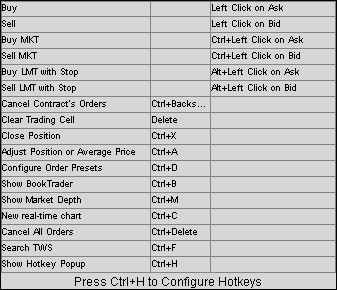
Hotkeys
Several default hotkeys are pre-configured. Press Ctrl+H to view current shortcuts or configure custom combinations.
Forex Rate Charting
To open a chart window, right-click any FXTrader cell.
Charts load using standard currency pair defaults—using the midpoint between bid and ask as data source.
Because last-trade data is unavailable for spot Forex, charts cannot be plotted from trade executions.
Under chart parameters, set the "What to Show" field to "Midpoint".

This system is a streamlined interface that can be fully customized to suit your trading preferences.
An important difference between our platform and other FX platforms is that our company acts as an agent and does not take position on the other side of your trade. Our primary goal is to execute your order at the best available price.
To achieve this, we utilize the same SmartRouting system used for US stocks and options. This system continuously monitors quotes from liquidity providers and routes your order to the provider offering the best price at that moment.
Notice
Foreign exchange trading carries substantial risk of loss. Settlement dates for currency transactions may vary due to differences in time zones and official holidays. Settling trades executed across multiple currency markets may require borrowing funds. The interest rate on borrowed funds should be taken into account when calculating the cost of cross-market currency trades.
Trading Costs
The system was created to execute trades at the best price.
As part of a transparent pricing structure, Interactive Brokers discloses all transaction fees, standing out from Forex brokers who claim zero commissions while profiting from the spread between bid and ask prices.
Our company provides quotes directly from its banking partners and charges a flat fee of 0.2 basis points of the trade value with a minimum charge of $3.00.
Interbank Platform
Masters Trade provides FX traders with direct access to interbank quotes using SmartRouting technology, which aggregates feeds from 13 of the world's largest forex dealers in the interbank market. This results in deep liquidity and tight spreads—some as narrow as ½ pip!
In TWS, you can easily trade currency pairs or convert your base currency balance to trade products denominated in another currency.
FX routing has recently been simplified: all currency orders are now routed to IDEALPRO to ensure optimal execution regardless of order size. Trades below the interbank minimum (~$25,000 USD) will be routed as odd lots and may execute at a price up to 1 pip off the interbank BBO.
We support trading in 20 currencies, including USD, EUR, CHF, GBP, SEK, NOK, JPY, AUD, NZD, HKD, CAD, MXN, DKK, CNH, RUB, HUF, SGD, CZK, ILS, and KRW (with standalone conversion capability).
TWS FXTrader
Features of our Universal Account include access to global trading tools as well as Forex trading permissions, which can be enabled in Account Management.
In the "Trading Tools" menu, select FX Trader. This opens a standalone window. The top of the FXTrader window contains standard order management elements. The rest of the screen consists of a customizable 3x3 grid of "trading cells" populated with major currency pairs. Summary information on orders, executions, and portfolio status is available in the tabs above.
Trading Cell Components
Each individual currency pair occupies its own "cell," containing market data and order information. Within each cell, you can create, transmit, and cancel orders with a single click.
Streaming quotes highlight key price digits, and price movements are color-coded for convenience: price increases appear green, and decreases appear red.
The grid is fully customizable; you can adjust the number of cells, invert pairs, change colors, and modify price and size displays.
Each trading cell in FXTrader features a variety of useful tools:
Color-coded price/size ticks showing upward/downward movement.
Cancel active orders button to quickly cancel working orders for that pair.
Wrench icon to quickly open configuration parameters.
One-click pair inversion.
Dedicated order row showing current order details.
Book icon that appears when a better price is available in the odd-lot book.
Detailed tooltips displayed on cursor hover.
Optional display of position and P&L.
Right-click menu to launch other TWS features.
Quotes are displayed in individual cells using the same color scheme as the main TWS window.
The display is optimized to place visual emphasis on the price digits distinguishing bid and ask.
Trading volume is shown below the quote—a color-coded indicator signals upward/downward movement.
The book icon (odd-lot book indicator) signals that a better price is available in the odd-lot book than currently displayed. Orders below the interbank minimum size are processed by the system as odd lots. Hover your mouse over the icon for details.
Cells can be freely dragged and dropped within the grid; dragging a contract header row into the main trading quote monitor creates a new quote line.
The screen accommodates up to 16 cells in a 4x4 grid layout.
Although FXTrader was designed primarily for currency trading, it can also be used to trade futures. The same Forex-optimized features apply to futures trading, allowing traders to monitor quotes and place orders simultaneously across Forex and Globex futures.
Inverted Quotes:
FX quotes are expressed as spot rates by default, but you can choose to display Globex futures quotes by clicking the icon with two green arrows ("invert") in the upper right corner of a cell.
Inverted quotes are distinguished by an asterisk symbol in the title bar and a blue curved-arrow icon instead of green.
Order Creation
The market functions as an ECN: the order book allows placing orders away from and between current markets, as well as trading with liquidity providers alongside other Masters Trade clients.
Trading Restrictions
To receive interbank pricing, order size must equal at least ~$25,000 USD equivalent. Order size restrictions can be reviewed on our website.
If you attempt to enter an order size below the interbank minimum, you will receive a warning message indicating that the order is too small and will be routed to the odd-lot book.
If you confirm your acceptance of these conditions, the order will be routed to a venue with quotes typically up to 1 pip off the interbank BBO.
When performing currency conversions, specify the order destination as FXCONV, which classifies the trade as a pure currency conversion that will not reflect in the "FX Portfolio" section. Previously, conversion trades automatically appeared in the FX Portfolio section as well and had to be manually cleared.
Order Types
To view the list of available order types, go to the Global tab located under the "Exchange Listings" section.
To transmit an order, click the appropriate bid or ask price. The order row appears inside the cell and on the order management panel at the top of the page. Modify order parameters if necessary, then click "Transmit".
For traders who prefer faster, more aggressive trading, check the "Transmit Instantaneously" option. You will need to acknowledge a risk disclaimer before activating this feature.
Each cell displays active orders working on that specific contract.
The last trade price cannot be used as a trigger price. For stop, stop-limit, and trailing stop orders, use the midpoint price as the trigger price since last-trade data is unavailable.
You can monitor your position, average price, and P&L—as a contract—within each individual cell or in the "FX Portfolio" tab. This tab contains data exclusively for Forex trades and does not always reflect your real cash balance shown under "Market Value" in the Account window.
Order Management
Modified orders are processed as a cancellation and replacement of the existing order with a new order. Such replacements may incur a new minimum commission charge as a new order.
Small residual orders can be executed on IDEALPRO. Example: You place an order for 50,000—if only 40,000 fills, the residual quantity is 10,000. That 10,000 can execute via IDEALPRO even if the price is modified.
However, if order size is modified, the order will be classified as a new order and subject to minimum lot size requirements.
IDEALPRO trades executed after 5:00 PM (17:00) ET may be included in trade reports for the following business day.
Due to trade reporting accuracy requirements, small residual amounts may be included under the "Market Value" section in the Account window. These residual non-base currency balances (equivalent to $5 USD or less) will be automatically converted to your base currency after trade settlement.
Order Presets
To trade more efficiently, you can set default values for your most frequently used order criteria. New order rows populate automatically with pre-configured defaults, saving time and speeding up order entry. Saved default values appear in new order rows instead of blank fields.
You can manually adjust order parameters prior to transmission, but configuring preferred default conditions in settings speeds up execution.
Right-click in the quote panel and select Configure -> Settings -> Orders -> Presets, or press Ctrl+D inside a cell to set default parameters.
Define preferred order sizes for each currency.
Set price offsets in pips for stop and bracket orders.
You can even configure complex combination order parameters to increase speed and consistency during order creation.
Maximize Presets utility by creating multiple parameter schemas. Configure presets specifically for individual currency pairs by selecting the "Forex" asset type in Presets and clicking the "Ticker" icon on the bottom panel to add a pair (e.g., EUR.USD).
Holidays on Settlement Dates
Standard settlement for most currency pairs takes 2 business days, but certain pairs (e.g., CAD/USD) settle on the next business day.
For settlement to occur, central banks for both currencies must be open on the scheduled settlement date.
If a central bank for either currency is closed due to a holiday on the standard settlement date, settlement shifts to the next business day on which central banks for both currencies are open.
Holding large FX positions across holidays can significantly impact settled cash balances, incurring substantial carry and financing costs. Visit the Bank Holidays page for detailed information.
FX Matrix
FX Matrix provides Mosaic users with a convenient layout for monitoring a wide array of FOREX pairs. Activating the service requires IBIS platform access—which is free to all clients upon request via Account Management.
The matrix launches with a default set of currency pairs but can be customized. Click the wrench icon to add or edit pairs. To enter an order, click the cell corresponding to the desired FX pair.
Select FX Matrix from the "New Window" menu to launch. Drag and dock the window into your Mosaic workspace.
Two Ways to View FX Positions in the Account Window
The Account window displays your actual cash balances resulting from FX trades, conversions, or non-base asset transactions in the Market Value section. FX Portfolio is specifically separated to track average cost and P&L for "virtual" positions.
Market Value - Actual FX Balances
Your actual current currency balances are listed in the Total Cash column under the Market Value section.
Market Value lists asset amounts across all currencies to easily review net asset value per currency.
Click any column header in Market Value to view balances expressed in your base currency (converted values display in italics).
To quickly convert a non-base position into your base currency, right-click the row in the Total Cash column under Market Value and select "Close Currency Balance". The transaction executes immediately.
Due to trade reporting accuracy rules, small residual balances across non-base currencies are automatically converted at session end and reported on daily statements.
FX Portfolio - Virtual FX Positions
The FX Portfolio section displays "virtual" positions—a dedicated workspace for FX traders that does not show your actual cash balance (which resides under Market Value in the Account window).
For FX traders, this section tracks currency positions as contracts, simplifying P&L and cost-basis tracking. Data in virtual position rows displays identically to other contract types.
To prevent currency conversions from appearing in this section, specify FXCONV as the destination in the order row.
Whether virtual FX positions display in TWS trading windows depends on whether you collapse or expand the "FX Portfolio" section in the Account window. Collapsing it removes FX positions from the "Portfolio" tab in trading interfaces. Expanding "FX Portfolio" displays virtual positions on the quote monitor.
To exclude currency positions from quote monitors, collapse the "FX Portfolio" panel by clicking the arrow on the left.
Automatic FX Transaction Detection
Trading products denominated in a non-base currency accumulates profits/losses in that currency. You can either place an "FX hedge" order or manually convert non-base balances back to your base currency.
When placing an FX order to convert non-base balances, the transaction reflects across both currencies under Market Value and inside virtual positions—unless you select FXCONV as the order destination.
The FX Order Handling feature checks account positions and balances to determine whether you intend an FX trade or currency conversion, prompting you to specify trade intent.
Selecting currency conversion updates affected currency balances under Market Value without creating a virtual position.
Selecting FX trade creates a corresponding virtual position in FX Portfolio.
Checking "Allow TWS to apply this decision automatically in the future" routes all future FX orders to FXCONV without creating virtual positions.
You can set destination per order—choose IDEALPRO if you want to track virtual P&L in FX Portfolio.
Configuration
FXTrader can be customized across multiple configuration levels—from cell count and colors to order size calculation methods.
Click the "Configuration" icon on the toolbar to tailor your workspace.
Select cell display themes from preset options.
Specify total grid size displayed on screen—up to a 4x4 layout.
Click and drag title bars to reorder cells.
"Jump to Order" automatically moves cursor to the new order line on the Orders panel.
"Allow Numerator Sizes" allows specifying order size in either currency of the pair. When enabled, switching currency selection in the cell updates the corresponding order panel size field.
Right-Click Functionality
Additional tools and navigation options are accessible by right-clicking any currency pair cell:
Hotkeys
Several default hotkeys are pre-configured. Press Ctrl+H to view current shortcuts or configure custom combinations.
Forex Rate Charting
To open a chart window, right-click any FXTrader cell.
Charts load using standard currency pair defaults—using the midpoint between bid and ask as data source.
Because last-trade data is unavailable for spot Forex, charts cannot be plotted from trade executions.
Under chart parameters, set the "What to Show" field to "Midpoint".
Por favor Iniciar sessão ou Criar uma conta para se juntar à conversa.
Tempo para criar a página: 0.062 segundos